ANALOGALCHEMY / GUIDES / AI REPAINT
Fix one bad bridge — without regenerating the song.
GUIDE · UPDATED JUNE 2026 · THE SURGICAL OPTION
Every AI musician knows the feeling: the verse is gold, the chorus is gold, and the bridge sounds like it wandered in from someone else's song. The reflex — hit generate again — is a lottery ticket that risks everything you already love about the track. Repaint is the surgical option: select the offending seconds on the waveform, rewrite only those, keep the rest bit-identical.
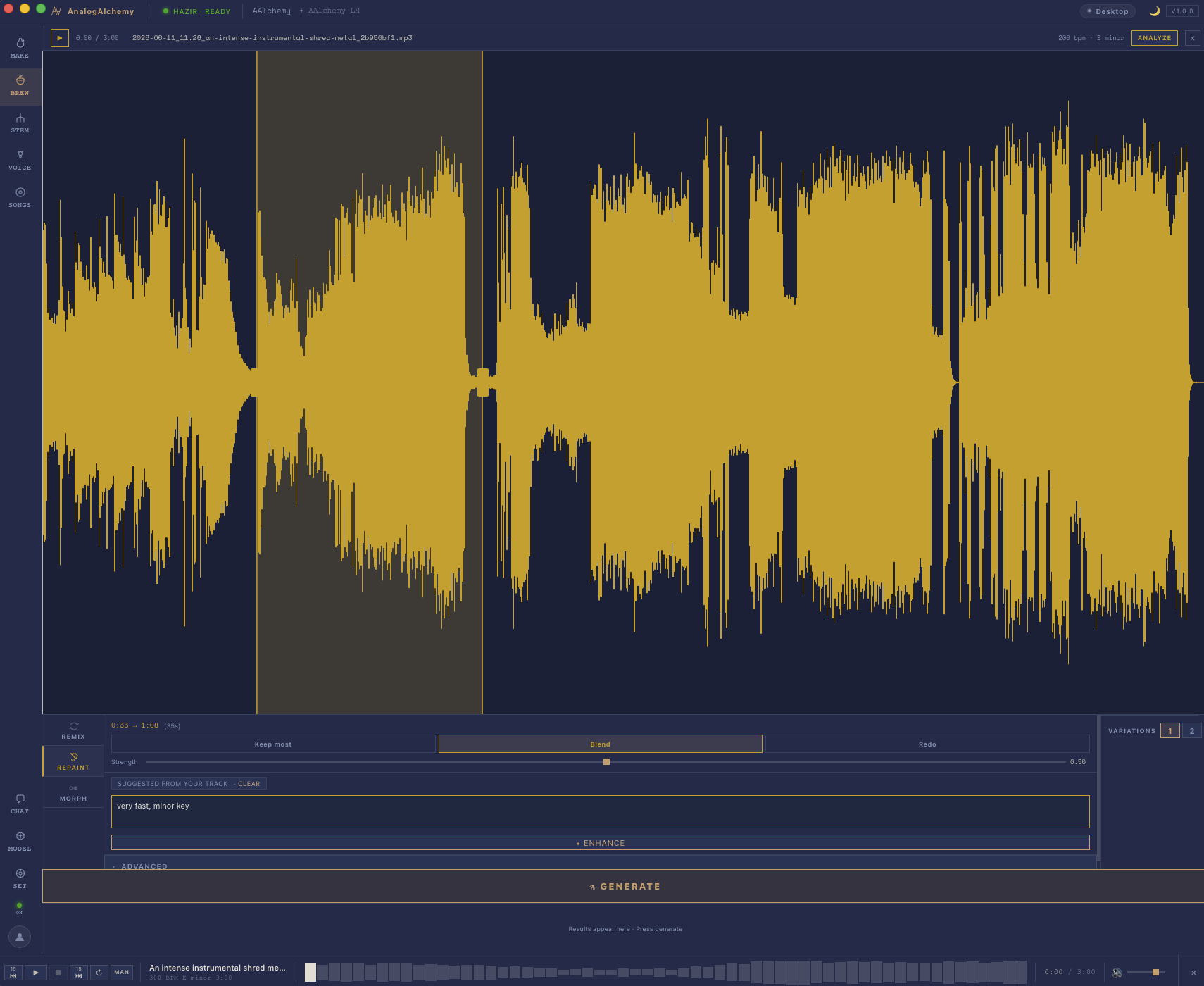
Open the song in Brew
Load the almost-right track into the Brew screen and switch to Repaint mode. Brew is AnalogAlchemy's transformation bench — remix and morph live here too, but today we're operating, not reinterpreting.
STEP 2Paint the problem
Drag across the waveform to select exactly the region that bothers you — say 0:54 → 2:06. Be a little generous at the edges: giving the model a beat of context on each side helps it stitch the seams invisibly.
STEP 3Choose how much to keep
Repaint isn't all-or-nothing. Pick your strength: keep most (the bridge stays recognizably itself, just better behaved), blend, or full redo (new idea entirely). You can also steer it with plain words — "calmer, strings instead of guitar" is a valid instruction.
STEP 4Regenerate — just that
Run it. The model rewrites the painted seconds and crossfades the boundaries; everything outside your selection is untouched, not re-rendered. Don't love the first attempt? Repaint again — it's your hardware, there's no credit meter, and the rest of the song is never at risk.
When to repaint vs. remix vs. regenerate
- Repaint — one section is wrong, the rest is approved. Surgical.
- Remix — the whole song is right but the energy isn't; subtle/medium/wild reinterpretations.
- Regenerate — the idea didn't land at all. Roll fresh dice (cheap here: no credits).
How to give repaint useful direction
Repaint accepts plain-language instruction for the region you've painted — the same way the main prompt works in Make, but scoped to just those seconds. Getting specific pays off here more than being vague.
- Describe what you want, not what you don't want. "Sparse piano and cello" works better than "less busy". Give the model something to aim at.
- Include feel, not just instruments. "Tense, sparse, building toward something" gives the model more to work with than "piano only".
- Match the context around the painted region. If the verse before the painted section is in a minor key with a slow tempo, don't describe a bright major-key chorus — the model has to blend the seams. Describe something that could plausibly follow what came before.
- Short is fine. Two or three words are enough if they're the right words. "Quieter, strings, minor key" is a complete instruction for many purposes.
If you leave the direction field empty, repaint uses the original song's prompt as context — which is often the right call when you want a better version of the same idea, not a different idea.
What repaint is good for — and what it isn't
Repaint works best on discrete, bounded problems. Before reaching for it, ask: is the thing I don't like contained to a specific region, or is it a property of the whole song? If it's the whole song, remix or regenerate will serve you better.
Good candidates for repaint:
- One bad line or phrase — a lyric that came out garbled, a note that went flat, a fill that went nowhere. Select only those seconds.
- Swap an instrument in a specific section — the chorus drums are busy but you want something simpler; paint the chorus, describe what you want, run it.
- Fix a weak transition — the move from verse to chorus is abrupt. Paint the seam region (the last few bars of one and the first few of the other) and let the model smooth it out.
- Patch a repeated section — both choruses were generated the same, and you want the second one to build. Repaint the second chorus with different direction.
Less effective: trying to repaint a problem that spans the whole track (a key that doesn't suit the vocal, a tempo that's wrong, an instrument mix that's consistently off). Those are whole-song decisions — remix handles them better.
Troubleshooting the seams
If the repainted section sounds abrupt at the join — a noticeable cut or texture change at the boundary — the selection is usually the culprit, not the model.
- Try widening the selection. A bit more context on each side gives the model more room to handle the crossfade. An extra half-bar at the start and end is often all it takes.
- Or narrow it. If you've painted a large section and the joins are rough at both ends, you may be asking the model to blend across too much structural change. Paint more tightly around the actual problem.
- Repaint a touch beyond the bad part. If the seam itself sounds wrong (not the content, just the join), paint past it — include a beat or two of the good audio on either side. The model's crossfade will sit inside clean material and have somewhere to land.
- Strength setting affects seam quality. Higher strength (closer to "full redo") is more likely to produce a texture that doesn't match what surrounds it. If seams are the problem, try dialing strength back toward "keep most" and see if the output still fixes your issue while blending more naturally.
- Run it again. Repaint is stochastic — the next run with the same selection and settings will be different. If one result has a rough seam, another may not. There's no cost to running it four or five times and picking the best.
One more thing worth knowing: repaint is non-destructive by design. Every run produces a new candidate; your original is never overwritten until you explicitly keep a result. You can run ten attempts, A/B between them and the original, and walk back to the untouched track at any point. There is no commitment until you decide there is.
Questions people ask
What is AI repaint?
Audio inpainting: select a waveform region, the AI regenerates only that section and blends the seams. The rest of the track is untouched.
Can I control how different it gets?
Yes — strength levels from "keep most" to "full redo", plus plain-language direction for the painted region.
Does it work offline?
Yes — locally on your Mac, like everything in AnalogAlchemy. No upload, no credits.
The join sounds like a cut — what do I do?
Widen the selection by a beat or two on each side, or dial strength back toward "keep most" so the repainted audio is closer in texture to what surrounds it. If neither helps, run it again — repaint is random; a different result from the same selection often has a cleaner seam.
Operate on your own tracks.
Repaint is fully unlocked in the free 14-day trial. No account needed.
MACOS 14+ · APPLE SILICON · WINDOWS COMING SOON
MORE GUIDES: STEM SEPARATION · TRAIN YOUR AI VOICE · TEXT-TO-SONG SETTINGS